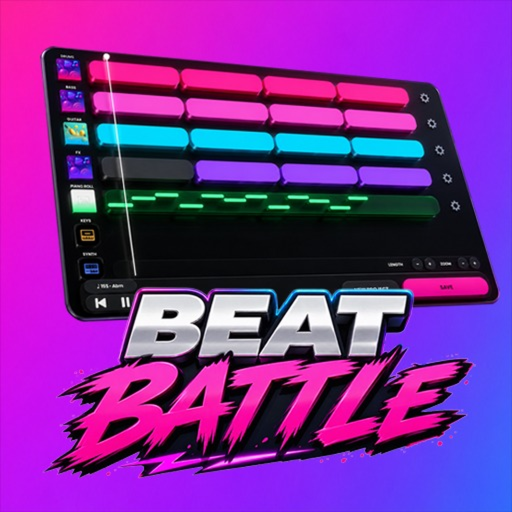
Beat Battles Studio HUD vs Stage HUD
Learn the two interfaces on a 25-player server without fake keybind tables.
Beat Battles puts two different interfaces on the same Roblox server: a sequencer studio and a live stage HUD. Mixing them up is the usual reason a first set sounds unfinished or a queue click does nothing. This page names the surfaces you can actually see — lanes, transport, shop, chat, menu, Current DJ, theme, YOU’RE UP!, star votes, and Stage Controls — and it stops there. It will not invent keyboard shortcuts, mobile gestures, or hidden combos this wiki has not confirmed from the live BETA. For the session order around those surfaces, use Getting Started. For writing on the Piano Roll lane, use the Piano Roll Guide. For what to do when the HUD says you are up, use How to Win Battles.
Two HUDs, one 25-player server
You are in a live online instance with up to 25 players, not a single-player DAW and not a tap-arrow rhythm chart. The studio is where you build. The stage is where the crowd hears that build and assigns stars. Camera movement, jump, and the Roblox menu still exist because this is still Roblox, but they are not how you place a bass clip or fire the Flame Machine. Treat character movement as how you stand in the room. Treat the on-screen music chrome as how you play the game.
If a control is not labeled on one of those two HUDs, do not assume a PC keybind from another music game will map onto it. Overtune’s sequencer is a UI-first tool. Click or tap the lane you mean. Watch BPM and key on the studio readout — promo examples show 165 in A-flat minor — before you drop a clip that fights the project.
Studio HUD: lanes, transport, shop, chat, menu
The studio strip is seven lanes: Drum, Bass, Guitar, FX, Piano Roll, Keys, and Synth. Drum, Bass, and Guitar are the usual loop-painting lanes. FX is a thin layer on top. Piano Roll is note writing. Keys and Synth are extra harmonic or lead lanes, not a second drum kit. Selecting a lane is how you tell the sequencer which job you are doing; there is no secret eighth lane in this BETA that this wiki can name.
Transport is the play/stop cluster that lets you hear the stack from the top. Use it as a honesty check, not as a decorative animation. If you cannot let the 8–16 bars run without grabbing the playhead, the set is not ready for the stage. Shop sits beside that work: gems and cassette currency, with a Single Loop Box at 100 gems, a Triple Loop Bundle at 250, and a Full Pack Crate at 1100. Open shop when a foundation lane is empty, not when you are bored mid-bar.
Chat is the social channel for the 25-player server. Use it to call a theme, ask who is queued, or share that you posted a track. Do not use it as a mixer. Menu is the Roblox and experience wraparound: leave, settings, and whatever Overtune hangs on the pause surface. If a button is inside that menu, it is not a lane control.
Mobile and PC both have to hit the same lanes. On a phone or tablet the sequencer is a touch surface — smaller hit targets, more scrolling, easier to tap the wrong lane when the Piano Roll is open. On PC you have a pointer and usually more screen, which makes painting Drum versus writing notes easier, but it still does not give this wiki a license to list unverified hotkeys. If a YouTube overlay shows a shortcut this page does not name, treat it as unconfirmed until we can see it in the live HUD.
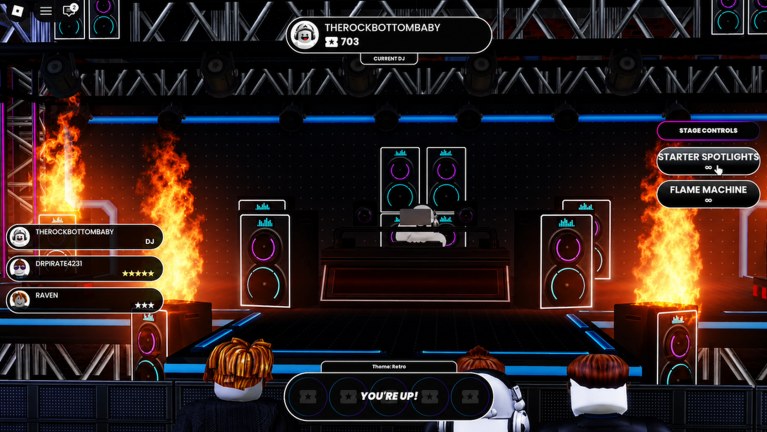
Stage HUD: Current DJ, theme, YOU’RE UP!, stars
The stage HUD is a performance scoreboard, not a second sequencer. Current DJ tells you whose set is filling the room. The theme — Retro is the example this wiki will keep using until Overtune posts a fuller list — tells you what the crowd is primed to reward. YOU’RE UP! is the prompt that your queued set is now the one being judged. Star votes are how the crowd answers. None of those widgets place notes. If you are still rearranging Guitar while YOU’RE UP! is showing, you queued too early.
Read the stage HUD the way you read a lobby, not the way you read a mixer. Who is on. What the theme is. Whether you are next. How stars are landing on the current set. That information feeds How to Win Battles more than it feeds the studio. You still need it before you touch Stage Controls, because dressing a set that ignores the theme is how spotlights start looking like panic.
Stage Controls: Starter Spotlights and Flame Machine
Stage Controls currently include Starter Spotlights and the Flame Machine. They are show dressing for the DJ who is up. They are not extra lanes and they are not a vote hack. Fire them to mark a downbeat or a hook, then leave them alone. Spamming flames through a quiet intro does not add bass. Leaving spotlights on through a whole rambling repeat does not hide the repeat.
Effects as an unlock category — the longer catalogue you climb toward with production level — live on the effects unlocks page, not on this HUD list. Starter Spotlights and Flame Machine are the labeled stage tools you can talk about on day one without inventing names. If a later BETA build adds another Stage Control, that page and the battle guide will pick it up; this page will not guess the label.
Mobile versus PC, without fake keybinds
Play the platform you can hear clearly. Headphones help on both. On mobile, lock your attention on one lane at a time and zoom the Piano Roll before you place notes, because a missed tap on Drum can flatten a whole stack. On PC, keep the studio chrome fully visible so shop, transport, and lanes are not fighting a tiny window. In both cases, character movement is how you stand in the club; it is not how you quantize a hook.
We will not publish a key table for play, undo, copy, or camera because we have not confirmed those bindings in the live BETA. If Overtune posts an official overlay later, this page will cite it. Until then, the reliable controls are the labeled HUD widgets: lane select, transport, shop, chat, menu, Current DJ, theme, YOU’RE UP!, stars, Starter Spotlights, and Flame Machine.
A practice pass that uses both HUDs
- In the studio, select Drum, hear a clip, then stop with transport before you touch shop.
- Check BPM and key so the next clip belongs in the project.
- Open shop only if Drum or Bass is silent; close it before you write on Piano Roll.
- Walk to the stage without queuing and read Current DJ plus the theme for two full sets.
- Queue when your 8–16 bars already play. When YOU’RE UP! hits, perform, then vote.
- If you use Stage Controls, fire Starter Spotlights or the Flame Machine once at the hook, not as a background loop.
That pass teaches the two HUDs as two jobs. Everything else is arrangement or vote strategy, and those are different guides.
Frequently Asked Questions
Quick answers for remixing, voting, and climbing Beat Battles billboards.
Why doesn't this page list keyboard shortcuts?
This wiki has not confirmed exact keybinds in the live BETA. The labeled HUD widgets are the reliable controls: lanes, transport, shop, chat, menu, Current DJ, YOU'RE UP!, stars, and Stage Controls.
What is the difference between the studio HUD and the stage HUD?
Studio is lanes, transport, and shop for building an 8–16 bar stack. Stage is Current DJ, theme, YOU'RE UP!, star votes, and Stage Controls for performing that stack.
Which Stage Controls can I use on day one?
Starter Spotlights and the Flame Machine. Use them to mark a hook, not to hide a missing bassline. Longer effect unlocks are on effects.
Does mobile play a different game than PC?
No. Both platforms share the same seven lanes and the same stage HUD. Mobile has smaller hit targets; PC has a pointer. Neither one gets invented hotkeys on this page.
Where do I go after I can read both HUDs?
Finish a first stack with Getting Started, write a hook on the Piano Roll Guide, then take it on stage with How to Win Battles.